Quantcast
Channel: Andrej Baranovskij Blog
Viewing all 743 articles
Browse latest View live

Oracle Forms to ADF Modernization Reference - Convero (AMEC) Project

$
0
0
I'm excited to announce our new Oracle Forms to ADF modernization reference published on Oracle OTN site - Convero (AMEC) project:


You can read all the details and description from the reference document. I just can add from myself that Convero (AMEC) project is innovative in terms of technical approach to modernize such large scope Oracle Forms system to ADF.

Passing Payload Value from ADF to BPM Process Task

$
0
0
This post describes how to pass payload value from ADF programmatically and assign it to the BPM process task. This is one of the important points for ADF/BPM integration, along with programmatic process task initialization we are able to assign process task payload and pass dynamic values.

Sample process from demo BPM app -  adfbpmapp_ps6_v2.zip, works with Employee type payload. Employee data is submitted in the input and output of the process task:


Process is initialized programmatically, AssignEmployee task is process automatically by completing this step from ADF through BPM API. User is navigated to AssignEmployeeReview task automatically - this is how sample process works:


Once new process task is initialized, we are setting payload variable based on initialized task ID and processing the task. From the same bean, tasks table is refreshed by the ADF poll component to display latest changes. BPM process task starts asynchronously and ADF UI may not display it immediately:


Payload value is assigned by getting task payload XML element and setting value by ID. In this example only Employee ID variable is initialized for the payload:


BPM process works in the similar way as ADF Task Flow - navigation between process tasks is controlled by outcomes. As you can see SUBMIT outcome is defined in the task definition:


Finally ADF UI part defines ADF Poll component to reload tasks table automatically every 10 seconds to display asynchronously started BPM task list:


User redsam1 selects employee row - 101 in this test:


Goes to Assigned Tasks tab and from there starts new process (payload for Employee ID is retrieved from current row set in Employee Data tab):


As you can see from the screenshot above - task was created, but not yet displayed in the list. Since list is auto refreshed - it will be loaded in the next 10 seconds:


If you go to the standard workspace task flow and display associated human task UI for selected process task, it will display Employee ID 101 from process payload assigned by method in ADF:


Submit selected task for further processing, payload value will be transfered by BPM to the approver redsam2 user:


Through BPM process instance tracker we can double check - payload was set programmatically correctly, value 101 is displayed:

Fix for View Criteria Search Results with DB Pooling Enabled

$
0
0
In order to minimize DB connections usage and optimize ADF runtime performance, I often prefer to enable DB pooling and keep data between requests in memory (jbo.doconnectionpooling = true and jbo.txn.disconnect_level = 1). Read more in this post - Stress Testing Oracle ADF BC Applications - Do Connection Pooling and TXN Disconnect Level. There is one bug related to the View Criteria search results - rows are not always displayed correctly. I will describe the fix.

Sample application - SearchRefreshDBPoolApp.zip is enabled with DB pooling:


Disconnect level is set to 1 to keep data between requests in memory:


Do a search for the last employee in the rowset - Gietz:


As soon as results list will be filtered:


Clear up search criteria for the LastName and search again with blank criteria to get all rows:


Not all rows are retrieved to the UI, you can try to scroll up and down - still results list is incomplete. Only if you press Search button second time - then results list will be refreshed and bring correct results.

The fix is to set ContentDelivery=Immediate for the table component:


After repeating same test scenario, results list will be complete from the first time:

ADF BC 11g PS6 DB Pooling Threshold (New) Property

$
0
0
During OOW'12, it was announced by ADF BC team - new tuning property for ADF BC with DB pooling enabled, coming in the next releases - jbo.ampool.connection_threshold. The main idea is to keep connected JDBC connections until predefined threshold limit is reached, once limit is reached - ADF BC will be returning least used JDBC connections back to the pool. This would allow to keep less open JDBC connections and at the same time for active AM's it will not disconnect JDBC connection on each request. Currently with DB pooling enabled, JDBC connection is disconnected and returned back to the pool after each request (still it works quite well) - Stress Testing Oracle ADF BC Applications - Do Connection Pooling and TXN Disconnect Level.

As per Jobinesh post - Smart database connection pooling with new jbo.ampool.connection_threshold parameter, threshold property for ADF BC DB connection pooling was introduced already in ADF 11g PS6 (11.1.1.7). However there is no official documentation regarding this yet, at least in ADF 11g PS6 (11.1.1.7) developer guide.

You should keep in mind - connection threshold works only when DB pooling is turned off. I was expecting opposite behavior - to disable connection pooling until threshold limit is reached and then do connection pooling. While with threshold setting, ADF behaves in default way until limit is reached and only later after AM timeout it will start to release connections back to the DB pool.

So, I decided to give a test and see how it works. Download sample application test case - DBConnectionThresholdApp.zip.

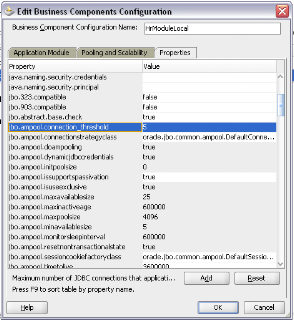
The test is really simple to check if ADF BC in 11g PS6 is able to keep threshold of so called sticky DB connections. Set now new property jbo.ampool.connection_threshold = 5. You can set any number here, doesn't matter. I just set 5 to assume that threshold will be 5 sticky JDBC connections, and when there will be more than 5 AM instances created in parallel and JDBC connection usage will grow, some of the JDBC connections will be returned back to the pool:


I will be testing ADF application with 6 concurrent users, meaning 1 JDBC connection should be released and 5 will be reserved.

Open ADF application test case and click around. I have started 7 diffent sessions:


As I can see from the log, 7 DB connections were reserved:


Two of these connections will be released later, when AM pool monitor will be cleaning inactive AM's. This is good, but still it seems to be implicit DB pooling is better.

I will do stress test to compare threshold tuning vs. DB pooling and post results.

UPDATE 2013/06/21 - Property jbo.ampool.connection_threshold is an undocumented feature and there is no guarantee that it will work across all servers and platforms. And this is not for public use at the moment.

Calling ADF BC Web Service from BPM Process

$
0
0
This post is about calling ADF BC Web Service from BPM Process. In order to keep track of the steps executed in the process I will be calling ADF BC Web Service, passing task outcome and updating database table. This is quite handy, especially when identifying and recovering failed BPM process instances. You could implement process instance replay, when process instance execution data is stored in the DB. For this purpose I will pass process instance ID to the ADF BC Web Service in order to identify and assign current process task.

Run sample application - adfbpmapp_ps6_v3.zip and start new process:


We can see from BPM log - first task is completed and call to ADF BC Web Service is executed:


Same can be visualized in the process flow:


Database is updated through ADF BC Web Service with current process instance ID, payload ID and task outcome - started:


Push task further by submitting it for approval:


This will be visualized in the process flow - invoking status update through ADF BC Web Service and arriving to approve employee task:


Database is updated for the current process with the task executed set to be assigned:


Let's reject this task now:


Process flow comes back to original assigning task:


This is logged in the DB - status reject:


Start new task and you will see that record with new process instance ID will be created, assigned with different status:


Finally if first process instance gets approved:


We can see this updated in the DB - status approve:


This was quick description about how such functionality works, now I will describe important things from technical perspective.

First issue you will encounter when calling ADF BC Web Service from BPM process - Data Source driver compatibility. By default ADF BC is using non-XA data source driver, however this should be changed when calling ADF BC from BPM process. If you would use default non-XA driver, there will be error generated related to transaction failure and driver type:


Go and declare second driver for your ADF application, now XA type driver:


Make sure you select it for the application module configuration serving ADF BC Web Service:


ADF BC Web Service method itself executes View Criteria to search for process instance ID. If such ID was already logged, it updates the record, if not - creates new record:


Here we can see custom method from Application Module Implementation class exposed as ADF BC Web Service method:


Make sure to set additional listener class in weblogic.xml of ADF BC Web Service application, otherwise ADF BC Web Service method will not be located from BPM process. Add this listener - oracle.jbo.client.svc.ADFApplicationLifecycleListener:


You need to copy ADF BC Web Service WSDL URL and use it in BPM process to define service call:


Here you can see ADF BC Web Service invocation service call defined in BPM process:


Very important is to set correct Registry property for the service call defined on top of ADF BC Web Service. Registry property must start with ADF BC Web Service deployment application name and end with JBOServiceRegistry system keyword (there must be _ between these two).

ADF BC Web Service payload values are initialized through data association. Process instance ID is set from predefined BPM process variable - ecid:

Announcement - Red Samurai Code Quality Tool Version 2.0

$
0
0
We are busy packaging new version of our Code Quality Tool. Previous version was posted almost 3 years back - Red Samurai Tool - JDeveloper 11g Extension to Validate ADF Code Quality Version 1.1. It is time to update it now, based on new experience from ADF projects. We are going to include only generic rules that possibly can be applied for variety of ADF projects.

Main new features:

1. Compatible with JDeveloper 11g R2

2. Based on standard JDeveloper OJAudit engine

3. Rules are executed and displayed instantly during design time, together with standard JDeveloper warnings and errors

4. Command line execution is possible through OJAudit profile

5. Automated fixing rules. These rules report code quality violation and do automatic fixing in batch

6. Easily extendable, new rules can be added anytime through separate Java class

7. Configurable through JDeveloper environment:


Stay tuned, download will be available soon.

Create Row from the Standard ADF UI LOV Component

$
0
0
There is one less known feature of ADF UI LOV component. There is a way to enable additional built-in button for ADF UI LOV popup, this button is rendered as create type icon. Custom popup can be attached to that button and then we can render pretty much anything from that custom popup. I will show you how this is done, based on Oracle ADF UI developer guide - Create Icon in Toolbar of Popup Dialog. This is useful when you want to allow users to maintain the list directly from ADF UI LOV popup.

Sample application - LOVNewRowApp.zip contains LOV component for JOB_ID:


There is ADF UI LOV component property - CreatePopupId. You should set ID of your custom popup you want to be loaded from ADF UI LOV, button with create icon will be rendered out of the box for you once this ID is set:


My custom popup implements listeners to be executed on fetch and on cancel, this is needed to prepare new row when popup loads and roll it back in case of cancelation:


Set dialog listener to perform transaction commit and insert new record:


Source code for these listeners is pretty simple, it calls methods from bindings:


Here you can see regular ADF UI LOV rendered with create icon just above the results table:


Hit this create button and referenced custom popup through ID will get displayed. Popup fetch listener creates new row before popup is loaded, so we can see blank row inserted:


Type data for the new job and press OK:


Custom popup will be closed and newly inserted record will appear in the LOV list instantly (you may need to press Search button in the LOV window):

Red Samurai - Indiana Jones Style in Africa

$
0
0
Red Samurai is known for ADF guru development around the globe. But there is a secret I want to share, in addition to Oracle work, we do special intelligence assignments and rescue missions.

Here you can view one leaked video, where we are in action during recent mission in Africa:


So, if you got any troubles and can't sleep peacefully, call us and we are here for your service. ADF bugs better keep away!

Advanced View Criteria Implementation in ADF BC

$
0
0
I would like to walk through advanced options in ADF BC View Criteria. It goes easy, when defining pretty much standard criteria operators and comparing attribute from VO with literal on bind variable. But when it comes to implement more complex use case with SQL expression or non standard operator, its when developers usually drop it and implement static WHERE clause. Nothing bad to use static WHERE clause and in some situations there is no other choice as only to use static WHERE clause - I will describe in my next post. Today post is about advanced declarative View Criteria features only.

Here is my sample application as usual - CustomCriteriaOperationApp.zip. View Criteria is implemented for Employees VO. Besides regular attributes, there is one pointing to SQL fragment (Salary) and there is custom IN operator implementation:


As you can see Salary attribute implement > operator and it contains SQL statement for the literal. I set SQLFragment = true property in VO XML source code, this means SQL statement will be translated to SQL on runtime. This is convenient when you want to implement standard operator, but value is retrieved from custom SQL statement returning employees with salary above average.

If you want to implement operator to be custom as well - no problem, this is possible. As this example below implements IN operator and applies it for SQL statement highlighted (editable in VO XML source code only):


Here you can see in the source code, how custom operator is defined along with SQL statement to retrieve value:


Custom operator SQL statement is using bind variable for region ID. This bind variable is defined as required and initialized through View Criteria transient attribute. I need this in order to be able to render on UI search field for region ID:


Transient region ID attribute does nothing, is used only to be rendered as search parameter in the UI. Bind variable is mapped to this transient attribute and gets initialized as soon as user types and submits search action. This is how bind variable value is set and later used in custom operator SQL statement. Transient attribute defined in the VO:


ADF UI renders search block automatically, it displays these attributes marked as visible - First Name, Last Name and Region ID:


Result set is filtered by criteria from SQL fragment - employees with salary value above average and from departments in Europe, as selected in the choice list.

Bug in View Criteria - Joining Multiple Criteria Item Groups Doesn't Work

$
0
0
If you plan to use declarative ADF BC View Criteria features, you should keep in mind one bug related to complex View Criteria implementation with multiple joined criteria items. It doesn't work to define two or more top level criteria with AND/OR conditions. This is reproduced across all ADF versions.

Wizard allows to create two or more criteria groups:


However, when you run the page - ADF Query renders search item only from the second criteria group:


If you go to the source code of VO, XML contains indeed only one criteria group, this is why only one was rendered on UI:


Switch to wizard mode and open the same View Criteria again - it still shows two criteria groups defined:


It looks like JDeveloper is caching criteria definition in memory, but really wizard is not able to construct proper XML and it is loosing one of the criteria groups.

Try to close and open same VO, open View Criteria wizard again - after closing/opening VO it will display only one criteria group (second group is lost):


We can try to add new criteria group manually into VO XML:


Wizard displays it correctly:


Runtime still fails with class cast exception:


Download sample application for test case - CustomCriteriaOperatorApp_v2.zip.

Joining Static WHERE Clause and View Criteria

$
0
0
There might be cases when usage of declarative ADF BC View Criteria features will be not enough to implement complex filtering, as for example see my previous post - Bug in View Criteria - Joining Multiple Criteria Item Groups Doesn't Work. I will describe in this post how you can reuse complex WHERE clause and use ADF View Criteria to capture user criteria params only.

The trick is described in this sample application - CustomCriteriaOperatorApp_v3.zip. Along with View Criteria type - non required Bind Variables, I have defined one marked as required (WHERE type). Bind Variable - regionIdVar is used directly from static WHERE clause (marked as Required):


Static WHERE clause can be complex one, and usually there is no option to define complex WHERE clause with only declarative features offered by View Criteria.

Make sure to set Hide flag for required Bind Variable, otherwise it will be rendered as required criteria field in ADF Query:


We need to capture criteria parameter from ADF Query and initialize Bind Variable, this can be done through transient attribute defined in VO. There is no need to passivate this attribute explicitly, because framework will take care and passivate bind variable value automatically:


This sample defined WHERE clause with two separate groups connected with AND. Second group is using bind variable - regionIdVar:


Here you can see how bind variable is initialized, it will get value from transient RegionId field rendered by ADF Query:


Other bind variables are defined as View Criteria type, will be appended to WHERE clause dynamically on runtime:


RegionId is retrieved from ADF Query and set for static WHERE clause, while FirstName criteria value is appended dynamically:

JDeveloper/ADF 12c - Available for Public Download !

Smooth Migration from ADF 11g R1/R2 Apps to ADF 12c

$
0
0
First test I did with ADF 12c was to run apps developed with previous releases ADF 11g R1/R2. Migration was very smooth, no issues so far. Applications are migrated just with single click, no matter if based on JSPX or Faces.

In this post I'm going to publish two applications migrated from my previous posts. You can download two ADF 12c samples from here - adf12c_app.zip.


1. Test for ADF 11g R2 functionality for Multi Task Flow Binding. This allows to implement your own lightweight UI Shell functionality. Based on this post - Building Custom UI Shell with ADF 11g R2.

Application from ADF 11g R2 with Facelets was loaded smooth into ADF 12c, keeping same structure:


Multi Task Flow binding is recognized in ADF 12c:


Dynamic tabs are rendered correctly, every tab can be closed and opened again - list of loaded regions will be maintained by Multi Task Flow bindings, same as in ADF 11g R2:


2. Test for ADF 11g R1 functionality and JSPX. Based on this post - List View - Cool Looking ADF PS6 Component for Collections.

ADF 11g R1 apps implemented with JSPX technology are running fine as well. Here is example of List View component app implemented originally with ADF 11g R1:


ADF UI 12c is rendered correctly, List View brings Master-Detail data:

JDeveloper 12c New Feature - Explore Dependencies

$
0
0
There is new exciting feature available in JDeveloper 12c - Explore Dependencies. This works across all MVC layers (fragments, pages, task flows, bindings, model) and shows visual dependencies and connections between various files from your application. Below I will give couple of examples for typical ADF application.

1. DataBindings.cpx file dependencies


This shows all fragments/pages and page definition files included into DataBindings.cpx. You can expand page definition further and will see all VO's referenced from that page definition. Expand VO and will be able to see referenced EO's, VO links, etc.:


2. ADF/JSF fragment dependencies


You can see ADF task flow where selected fragment belongs and DataBindings.cpx file where it is referenced:


3. Page Definiton dependencies


Here we can get a list of referenced VO's, explore further and get a list of referenced EO's by selected VO:


4. View Object dependencies


Dependencies diagram brings very useful info and displays page definition and AM files where current VO is included:

Researching ADF 12c Connection Threshold Property Functionality

$
0
0
ADF 12c developer guide describes new ADF BC tuning property - Disconnect Application Module Upon Reaching Maximum Connection Threshold (jbo.ampool.connection_threshold). I was doing a bit of research around this property and testing how it works. It looks to me - it doesn't work yet, as it should. You should be careful using jbo.ampool.connection_threshold. As per developer guide, connection threshold functionality is enabled when threshold value is set to positive number. Once AM pool will grow more than this number, ADF BC will start disconnecting and releasing DB connections for the least used AM's. Disconnect will happen during AM pool cleanup, developer guide recommends to configure shorter pool cleanup interval (jbo.ampool.monitorsleepinterval). With normal ADF BC DB pooling enabled, disconnect will happen after each request. In theory connection threshold is supposed to optimize this and do disconnect only when exceeding configured threshold and during pool cleanup cycle. However this doesn't seem to work, at least based on my test.

My test was based on these tuning settings:


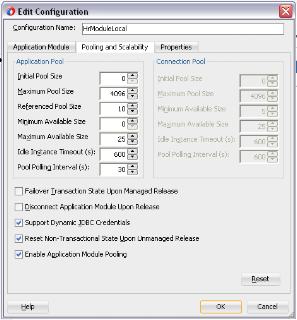
- Minimum Available Size changed to be 0, all AM instances will be cleaned

- Pool Pooling Interval changed to be 30 seconds. Meaning in 30 seconds interval AM pool cleanup monitor will wake up and try to disconnect AM instances exceeding connection threshold or inactive AM instances

- Idle Instance Timeout property is kept default 10 minutes on purpose, in order to force earlier disconnect from jbo.ampool.connection_threshold

- Disconnect Application Module Upon Release is not set. As it is stated in the developer guide, when positive threshold value is set - DB connection disconnect mode is set automatically (meaning no need to set it by yourself directly)

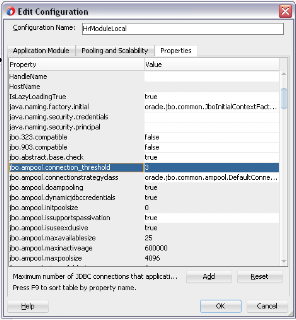
Connection threshold (jbo.ampool.connection_threshold) is set to be 3. Meaning when there will be more than 3 active AM's with DB connections, disconnect mechanism should start during next pool cleanup cycle:


I was running this test with 6 concurrent users, starting with the first user - completing first user actions and then starting with the next user. By the time 6th user starts his session, 30 seconds interval from the first user session was passed - pool monitor should disconnect exceeded number of connections - but this didn't happen. All 6 connections still remain reserved, with connection threshold set to 3 and pool monitor interval set to 30 seconds:


Here you can download sample application I was using for this test - ADFBCConnThresholdApp.zip. This tuning option looks to me very powerful for performance optimization and more optimal DB connection usage, hopefully it will be fixed soon and we could use it. Or may be my test was wrong, and it works already - let's see if we get more input regarding this tuning option.

ADF BC 12c New Feature - Row Finder

$
0
0
One of the new ADF BC features in ADF 12c - Row Finder. Row Finder acts as a helper for View Criteria to pass bind variable values and call query functionality. Important technical detail - instead of changing original rowset displayed on ADF UI, Row Finder creates and returns new rowset for results. This allows to search and get results with the same VO instance in parallel to the data displayed on ADF UI, without affecting original rowset accessed through bindings. At the moment it is possible to invoke Row Finder only programmatically through ADF BC API.

Here you can download sample application where Row Finder is implemented - RowFinderApp.zip.

When implementing Row Finder, firstly you need to define View Criteria. Here is View Criteria from sample application - filtering by First Name:


Once View Criteria is in place, you can go and define Row Finder (you must have View Criteria defined first). Set mapping between Bind Variables included into View Criteria and Attributes from where value is supposed to be supplied on runtime:


Later when invoking Row Finder through ADF BC API, we will need to set Attribute List with Attribute name and value pair.

There is custom method created in VO implementation class, this is where we call Row Finder:


Here is Row Finder invocation API example. Row Finder is invoked through execute(AttributeList, VO) method. We need to supply value for attribute name defined in Row Finder wizard previously. I'm getting value from current row. As you can see - Row Finder creates and returns another row iterator, without affecting original rowset of current VO instance. Basically it call new SQL query:


Custom method returns value - number of rows matching First Name from current row and is referenced from ADF bindings:


Later we display number of filtered rows in the popup on ADF UI. Here you can see example for 'David' - 3 rows located:


There are 9 rows for 'D':


The best of all - displayed rowset is not affected, we can move to another record and see that it comes from original rowset - 'Bruce':

ADF 12c New Feature - Unauthorized Task Flow

$
0
0
There is very handy feature available in ADF 12c - option to display predefined information, if current user is not authorized to view given region. Predefined information comes from dedicated ADF Task Flow with JSF fragment containing user friendly message.

In my example, there is one task flow configured to be rendered only for users assigned with finance-role:


Test user redsam is not assigned with finance-role, this is done for test purpose - to see how unauthorized region will be rendered:


As I mentioned earlier, there is one dedicated task flow created to be rendered instead of blank screen, when original task flow is not authorized to be rendered - unauthorized-flow:


Keep in mind - such task flow must be granted with anonymous or authenticated access to be accessible for anyone in the system.

JSF fragment from dedicated task flow contains simple text in this example, you may create something more fancy:


The key thing - configure dedicated ADF task flow to be considered by ADF runtime as the one to be rendered when original one is not accessible. This is done in adf-config.xml file. Under Controller section, make sure to point Unauthorized Region Taskflow to point to the ADF task flow definition:


On runtime, we can login with redsam user:


First region with departments data is rendered, second region is not authorized to be displayed - dedicated ADF region is rendered instead with text - Task flow access is denied:


Page is implemented with Panel Dashboard, two regions are located next to each other:


Download sample application - ADFSecurityTF12cApp.zip.

ADF Task Flow Transaction Management and ADF Libraries

$
0
0
I received a question from blog reader to check if ADF Task Flow transaction management still works when different Application Modules are coming from ADF libraries. Blog reader had a doubt it will not work. I did a test - it works well, so I would like to share this sample application with you as well.

Sample application - transaction_adf_libs_11g.zip is based on ADF library with Application Module - HrModule:


Reusable Application Module is packaged as ADF library and later imported into main application:


Main application contains second Application Module called HrMainModule:


At the end there are two Data Control entries available, one from local AM and another from imported one:


Both Data Control entries are registered in DataBindings.cpx file:


I have created one container wrapper task flow to launch target task flow with transaction management:


Target task flow contains one fragment (includes data from both Data Controls) and return activity (performs commit):


There will be always new transaction started on task flow entry, commit will be done on task flow level from return activity (see above):


From index page we can launch target task flow and initialise new transaction:


Here we edit data from the first Data Control in the left section:


Also data from the second Data Control in the right section:


Both changes will be saved automatically with single Save button click with ADF Task Flow transaction management. No matter if Data Controls are based on Application Modules from the same application or ADF libraries.

Multiple Choice Support in ADF BC View Criteria

$
0
0
It happened to see while reviewing ADF projects people are using complex implementation to allow search on multiple values. Same is available out of the box, I would like to share with you - may be it will save time during your next use case implementation.

Sample application - ADFQueryMultipleChoiceApp.zip, implements choice list LOV for Job ID attribute:


Job Id attribute is included into View Criteria as search item. Make sure to set search operator as Equals, otherwise LOV will be ignored and simple input text will be rendered:


Still in View Criteria wizard - go to UI Hints tab and make sure to select check box - Support Multiple Value Selection for JobId attribute. This will inform ADF runtime to render multi choice support in ADF query field:


This is how it looks on runtime - we can choose multiple value for Job Id - all them will be added to the query:


Data is filtered accordingly - employees with different Job Id's are included:


On SQL level - each value is added as separate bind variable:


And appended to the SQL statement WHERE clause:

WebCenter Portal - New Name for WebCenter Spaces in 11.1.1.8

$
0
0
There is a name change in WebCenter with the recent 11.1.1.8 release. WebCenter Spaces is not a fancy name anymore, Spaces is renamed to Portal. Simply speaking, if you are running Spaces - means you will be running now WebCenter Portal. On other hand, if you are running custom application built with WebCenter Portal Framework - this is also a Portal, just custom made.

WebCenter Portal (previously Spaces) UI is improved in 11.1.1.8 and performance wise is quite well responsive. Here is main login screen:


WebCenter Content access works from WebCenter Portal only if Content Server is configured with Folders_g component, it still doesn't work with new FrameworkFolders:


In terms of UI - all popups are removed from WebCenter Portal interface, this makes UI look cleaner. For example, preferences can be edited now in the same window, without opening separate popup:


There is Portal Builder wizard - central place to import/export and manage portals:


Portal template grouping and description is more user friendly:

Viewing all 743 articles
Browse latest View live


Latest Images